
Bulk Import Products
Bulk Import lets you configure products and variants in bulk using an Excel sheet generated by the application. Instead of configuring each variant on the Products page, fill in the configuration in the Excel sheet and upload it back to the application.
Bulk Import is available on the Basic plan and above.
The format for the Excel sheet is updated in the new version. Uploading an Excel sheet in the previous format will not work. Always generate a new Excel sheet using the steps below.
Generate the Excel Sheet
The application generates the Excel sheet (Configuration.xlsx) for the products you select, and sends it to your email address along with the instructions for filling it in.
To generate the Excel sheet, please follow the below steps:
- Navigate to Settings → Bulk Import on the application.
- Under Generate Excel Sheet For Import, enter the Email Address the Excel sheet should be sent to.
- Choose the Selection Mode:
- All Products – all the products in your store.
- Only Configured Products – only the products already configured on the application.
- Exclude Configured Products – only the products not yet configured on the application.
- Optionally, narrow down the products using the Filters: Tagged With, Not Tagged With, Product Type, Vendor and Product Status.
- Optionally, select Populate Product Details to let the application populate the configuration based on the Shopify product details like title, weight, SKU, etc.
- Click on ‘Send Email’.
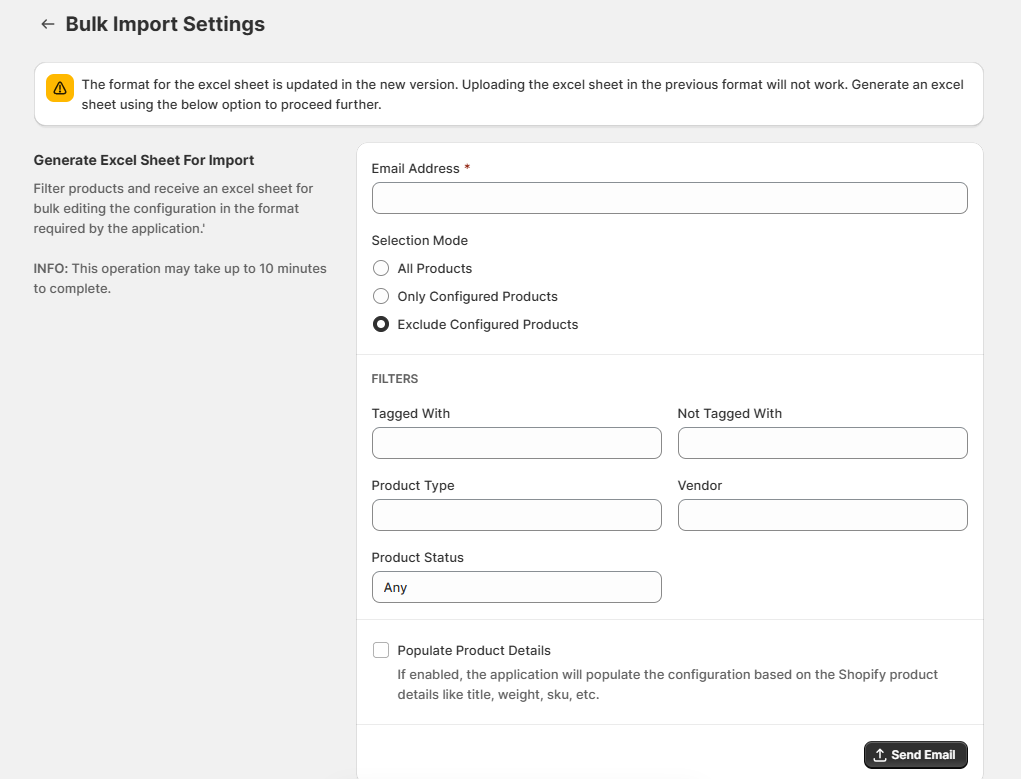
Generating the Excel sheet may take up to 10 minutes.
If the products or variants are already configured on the application, their configuration will be prefilled in the Excel sheet.
Fill in the Excel Sheet
Each row of the Excel sheet is a product variant. The first 6 columns identify the variant (Product ID, Variant ID, Product Title, Variant Title, SKU and Internal). Fill in the missing configuration in the columns that follow, starting from Metal Type.
Please follow the below instructions while editing the Excel sheet:
- Do not make any changes to the first 6 columns of the excel sheet.
- Do not make any changes to the format of the excel sheet like swapping columns, removing columns, etc.
- Valid Values for Metal Type are 'Gold', 'Silver', 'Platinum', and 'Palladium'.
- Valid Values for Purity are '24K', '22K', '21K', '18K', '14K', '10K', '9K' and '8K'.
- Metal Type and Metal Weight are mandatory. Purity is mandatory in the case Metal Type is Gold. The rest of the fields are optional.
- Do not add the '%', 'Carat' or 'Grams' in the field value. They will be updated based on your selected formula.
- The format for Stone Configuration is
Stone-ID/Stone-Weight/Stone-Quantity,Stone-ID/Stone-Weight/Stone-Quantity. - The format for Additional Metals is
Metal-Type/Purity/Metal-Weight,Metal-Type/Purity/Metal-Weight. Purity can be skipped for non-gold metal types (Eg:Metal-Type/Metal-Weight,Metal-Type/Metal-Weight). - Remove the formulas used in the excel sheet before importing the excel file.
Metal Type values are not case-sensitive. For example, GOLD and Gold are both valid.
Validate the Excel Sheet
Before importing, validate the edited Excel sheet to check every row for errors.
- Under Import Products on the Settings → Bulk Import page, click on ‘Upload Excel Sheet’, or drag & drop the edited Excel sheet.
- Click on ‘Validate’.
- The application will generate an Excel sheet (Product Import Status.xlsx) containing the validation status for each row of your Excel sheet.
The Validation Status column shows Validation Success for a valid row, or a message explaining what is wrong with the row. Fix the rows that failed and validate again until every row shows Validation Success.
Import the Excel Sheet
- Once every row is validated successfully, click on ‘Import’.
- The application will configure the products and update their prices on Shopify.
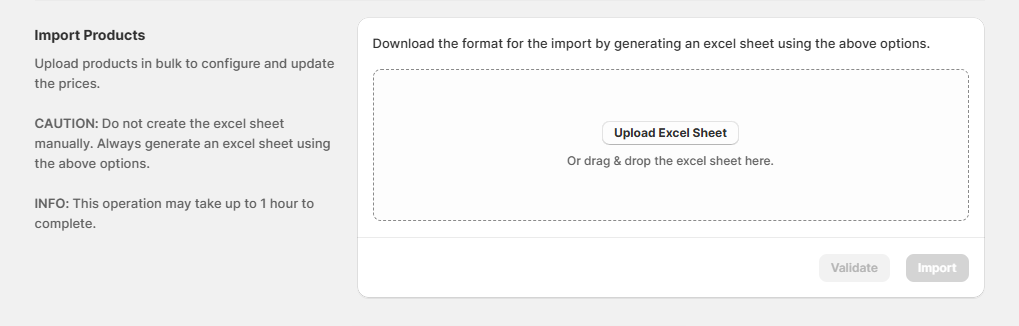
Importing may take up to 1 hour to complete.
Do not create the Excel sheet manually. Always generate an Excel sheet using the steps above.
For any queries or customization, please contact us at support@droidinfinity.xyz.
Still need a hand?
Our team will help you with setup, formulas and custom requirements.